You have video footage. It contains good content buried inside rambling sentences, awkward pauses, and verbal stumbles. Traditional editing means scrubbing through timelines frame by frame. Descript flips the model. It transcribes your video into text, and you edit the video by editing the document. Delete a sentence, and the video cuts itself. Here is the exact workflow to produce polished videos in half the time.
Start with transcription. Drag your video or audio file into the Descript workspace. The AI processes the file and displays every spoken word in a document window on the left. It identifies different speakers automatically and labels them as Speaker 1, Speaker 2, and so on. This takes seconds regardless of file length. The video preview sits on the right, synced to the text. You now have a fully searchable, editable version of your recording.
Now edit by deleting. This is the core function. Read through the transcript. Find the sentence where you stumbled, or the tangent that went nowhere. Select that text with your cursor. Press Backspace or Delete. Watch the video preview on the right. It jumps instantly to the next moment, stitching the remaining clips together seamlessly. Descript adds crossfades and smooths the transition automatically. You can also rearrange entire sections. Cut a paragraph from the middle and paste it at the top. The video reorders itself to match. No timeline scrubbing. No razor tools. It works exactly like editing a Word document.
Remove filler words in one click. Open the menu and select "Remove Filler Words." Descript scans the transcript and highlights every "um," "uh," "like," and "you know." Review the highlighted sections. Click "Delete All" at the top. The words disappear from the transcript, and the corresponding video segments trim out. Your speech becomes crisp and authoritative instantly. This single step eliminates hours of manual cutting.
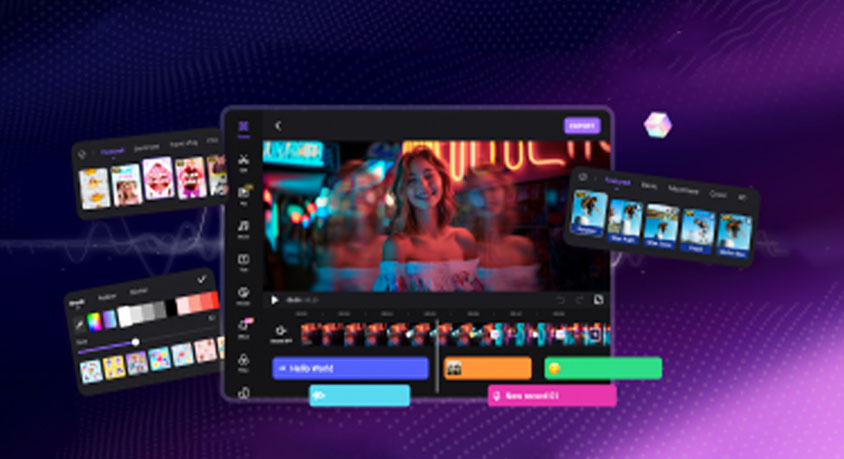
Fix mistakes with Overdub. Imagine you recorded a video but said "$100K" when you meant "$1M." You do not need to reshoot. First, create your voice model. Read a 10-minute sample script into Descript. The AI learns your vocal patterns. Now go to the transcript and highlight the incorrect word. Type the correct word. Descript generates new audio using your cloned voice and inserts it into the timeline. The fix is indistinguishable from your original recording. Use this for data corrections, name mispronunciations, or any small flub.
Add production value with Studio Sound and captions. Click "Studio Sound." Descript removes background noise, equalizes volume, and cleans up audio from cheap microphones. The result sounds like a professional studio recording. Then click "Captions." The AI generates dynamic, animated captions synced to your speech. These are the same highlighter-style captions used by top creators to boost retention. You can export with captions burned in or as a separate file.
Use the Ignore function for flexibility. If you are unsure about deleting a section, highlight the text and choose "Ignore." The text gets crossed out, and the video skips it during playback. But the original footage remains in the project. If you change your mind, remove the ignore flag and it reappears. This is safer than permanent deletion.
Remove backgrounds without a green screen. Select the video clip and choose "Remove Background." Descript isolates you from the original setting and replaces it with any image or color you choose. It works with ordinary room footage. No special lighting or backdrop required.
A critical ethics note. Overdub can only be used to clone your own voice or voices you have explicit permission to use. Do not generate speech for others without consent. The tool includes safeguards, but the responsibility is yours. Descript excels for podcasters, YouTubers, and business professionals creating training content. The learning curve is measured in minutes, not weeks. Your next video goes from raw footage to finished product in one sitting.