You stare at a blank presentation. You need slides, images, and social posts, but you have no design team and no time. Canva Magic Studio eliminates the gap between idea and execution. It generates complete presentations from a sentence, edits photos with text commands, creates original imagery, and adapts everything for any platform. Here is the exact workflow to produce professional designs without hiring anyone.
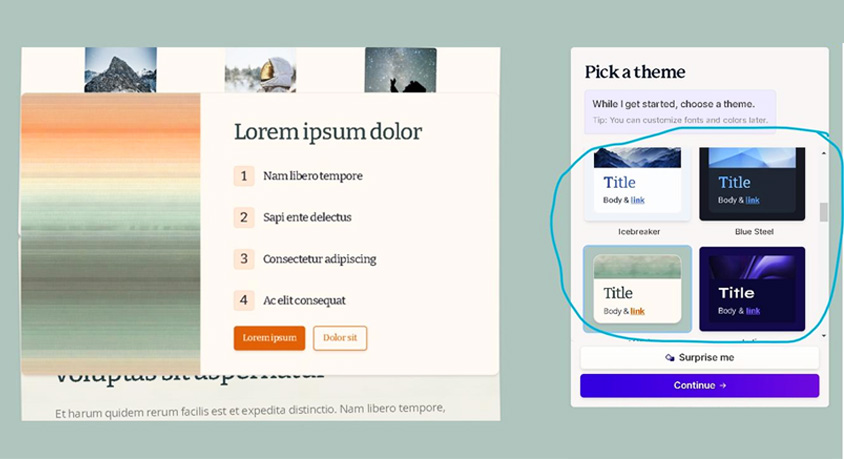
Start with Magic Design to kill the blank page. On the Canva homepage, click Magic Design. A search bar appears. Type your requirement as a complete sentence. Write "Create an 8-page pitch deck for a sustainable fashion brand targeting Gen Z in New York." Press enter. Within seconds, Magic Design returns multiple complete presentations. Each includes placeholder text, stock photos, and layout structure. Scroll through the options. When you find one that fits your brand direction, click Apply all pages. Your entire slide deck appears instantly. Every element is editable. Replace the placeholder text with your actual copy. Swap images with your own. The heavy lifting is done.
Now master image manipulation with Magic Edit and Magic Grab. Select any photo in your design. Click Edit Photo, then Magic Grab. The AI analyzes the image and isolates the main subject—a person, a product, a vehicle. It turns that subject into a movable layer. Drag it anywhere on the canvas. The background fills itself automatically with generated content matching the original. No cloning tools. No manual masking. For replacing objects, use Magic Edit. Click a photo, select Magic Edit, and paint over the area you want to change. Type "A luxury sparkling water bottle" over a coffee cup. The AI removes the cup and renders a bottle with proper lighting and perspective. The photo now matches your new concept.
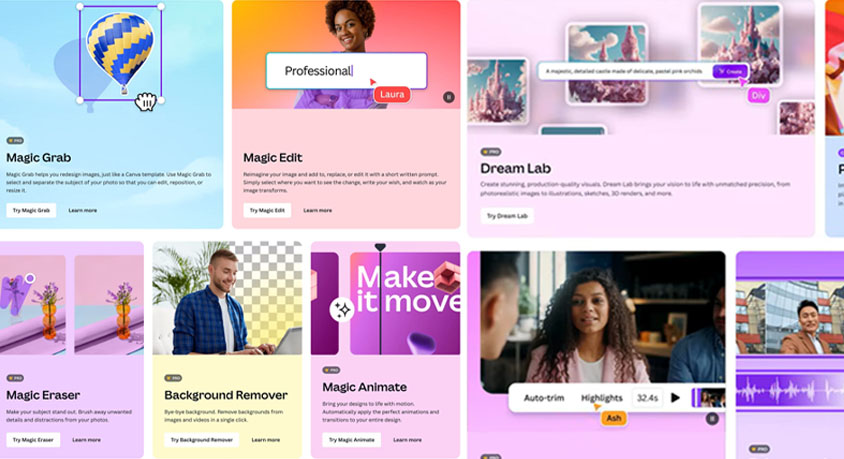
Generate original assets with Text to Image. Open the side panel and select Magic Media. Type your visual description. Be specific. Write "Cyberpunk style office, realistic lighting, diverse team collaborating, 8k resolution." Choose a style like Film, Watercolor, or Dreamy from the options. Click generate. The AI creates four variations of your prompt. Select the best one and it drops directly into your design. You now own unique imagery. No stock photo licensing. No generic visuals.
Adapt everything with Magic Switch. You built a horizontal presentation. Now you need a LinkedIn post. Click the Magic Switch button at the top of the editor. Select Social Media, then LinkedIn Post. The AI reformats your entire design. It rearranges elements, resizes text, and crops images to fit the new dimensions. The vertical layout maintains your branding and message. You can also switch to Instagram Stories, Facebook covers, or YouTube thumbnails with the same process. One design becomes ten.
For long-term efficiency, set up your Brand Kit. Access the Brand section in Magic Studio. Upload your logo, set your brand colors using hex codes, and select your brand fonts. From this point forward, every AI generation uses your specifications. Magic Design builds decks in your colors. Magic Edit preserves your palette. Text to Image respects your style. Consistency becomes automatic.
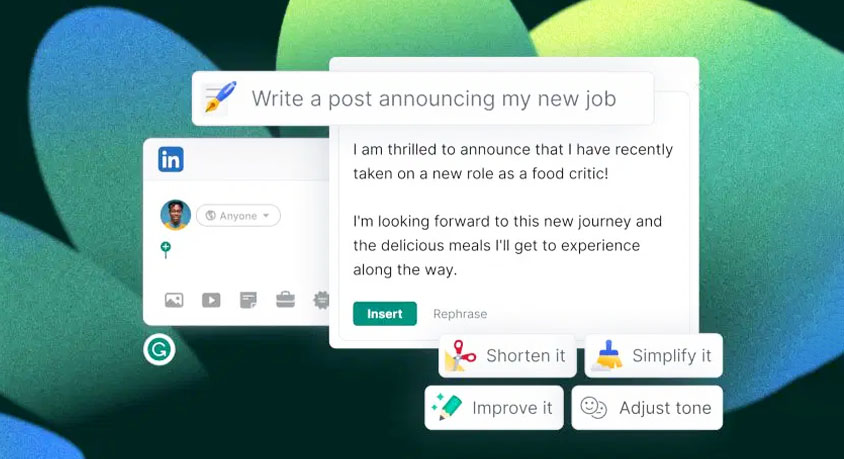
Use Magic Write for copy refinement. Select any text block and click Magic Write. Choose Make it more professional for business documents or Sprinkle fairy dust for marketing copy. The AI rewrites your words with appropriate tone and energy. You maintain control while benefiting from professional phrasing.
A few operational notes. Magic Studio features require an internet connection. Processing happens in the cloud. Also, treat AI generations as drafts. Review all text for accuracy. Replace placeholder data with your real numbers and names. Finally, respect the white space. AI suggests layouts with breathing room for a reason. Do not fill every gap. Clean designs read as premium. The entire workflow from blank canvas to finished assets takes minutes, not days.